
v15.3
- Added an option to turn pages one at a time when the page layout is set to “2 pages”.
- Fixed an issue where switching page layouts did not work correctly.
- Fixed an issue where the next page was not loaded when turning pages.
- Other minor bug fixes.
v15.2
- You can now assign various functions to each gesture, such as last page, show bookmarks, etc.
- Added “Tap left edge” and “Tap right edge” to gestures.
v15.1
- Improved the export feature by rasterizing all pages and normalizing the page size to standard (A4 equivalent).
- Improved the scale normalization so that annotations and jump links do not become too small when opening oversized PDFs (v15.1.2).
- Fixed an issue where jump links were not functioning correctly in the half-page layout (v15.1.2).
v15.0
- Added stamps and shapes to the annotation feature. You can now add text, musical symbols, and shapes.
- Added annotation settings. You can edit the tools and colors displayed when annotating.
- Added a jump link feature. You can place buttons to jump to any page with a single tap.
- The export feature now supports page reordering and exporting the entire setlist.
- Fixed an issue where password-protected PDFs could not be exported.
- Added support for Korean and Chinese (Simplified/Traditional).

Details of Key Updates
Turn Pages One at a Time (v15.3)
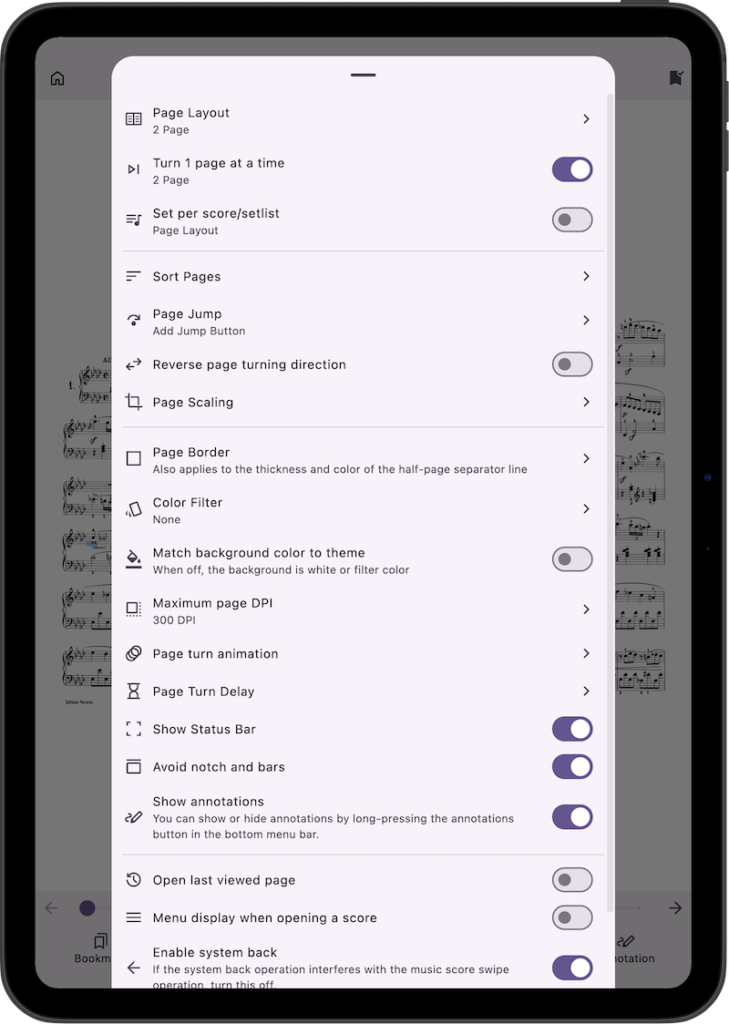
Added an option to turn pages one at a time when the page layout is set to “2 pages”.
When the page layout is “2 pages”, opening the Page Settings will show a new “Turn 1 page at a time” option right below the page layout setting.
Gesture Function Assignments (v15.2)
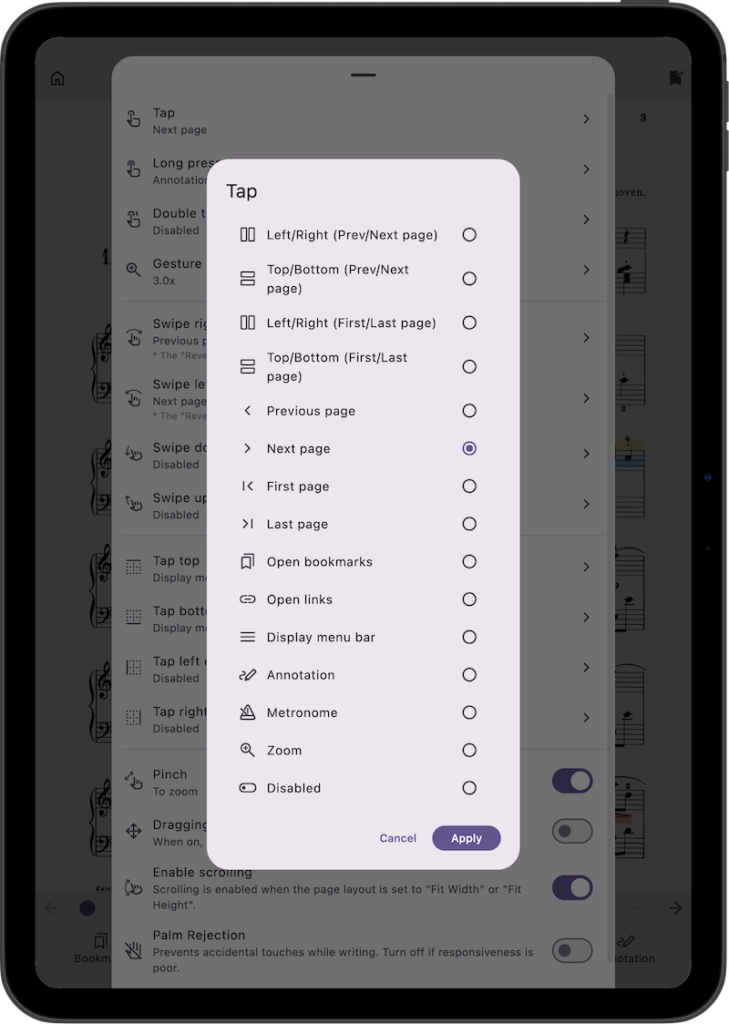
You can now assign various functions to each gesture.
You can set gestures to trigger actions such as jumping to the first or last page, showing bookmarks, and displaying links.
Note: When using a setlist, jumping to the first or last page applies to the current score’s first or last page. If you are already on the first or last page of that score, the gesture will intelligently jump to the previous or next page instead.
Additionally, “Tap left edge” and “Tap right edge” have been added to the available gestures.
Export Feature Improvements (v15.1)
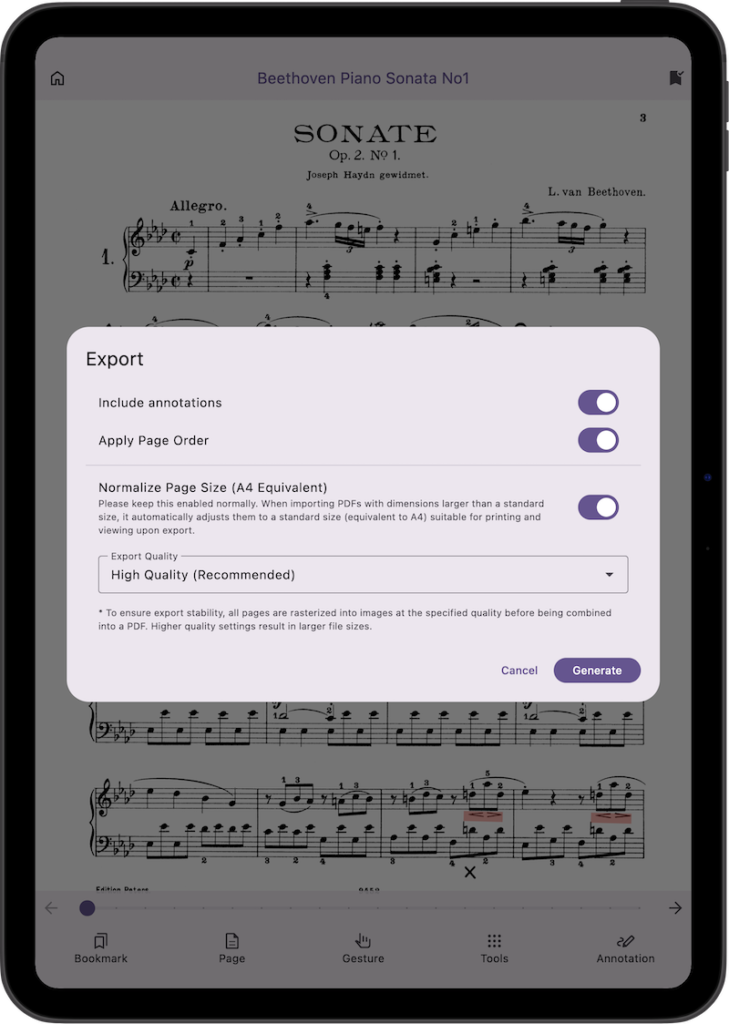
We have revamped the export logic to provide a more reliable and stable PDF export experience.
The process has been updated to rasterize all pages into images before recombining them into a PDF. To address the issue of excessively large page dimensions found in certain unique PDFs, we have introduced a feature that automatically optimizes and resizes them to a standard A4-equivalent format during export.
Because these changes have improved overall stability, we have also increased the resolution for all export quality settings: “Standard” (from 72 to 100 dpi), “High Quality” (from 130 to 200 dpi), and “Max Quality” (from 160 to 300 dpi).
Symbols and Shapes
Stamps (Symbols and Shapes) have been added to the annotation feature.
In the annotation feature, you can now switch between the drawing tool and the symbols & shapes tool.
(Note: The drawing tool and the symbols & shapes tool exist on separate layers. Therefore, features like the eraser, undo, and redo will function independently for each tool.)

By selecting text, musical symbols, or shapes from the bottom bar and tapping or dragging on the screen, you can add these items. While dragging, a preview of the item will be displayed, allowing you to check the exact placement before adding it.
Tapping an item added to the score will select it, allowing you to edit its size and color.
Additionally, by pressing the button with the red frame in the image below, you can choose not to select existing items. (This is a convenient feature when you want to place a new item near an already added item, or when existing items get in the way of zooming smoothly.)

Text
Select the text tool from the bottom toolbar and tap on the score to add text.
You can edit the added text by tapping to select it, and then tapping it again or pressing the edit button at the bottom.
Furthermore, there is a text preset feature that allows you to save frequently used text.
Musical Symbols
Select the musical symbol tool from the bottom toolbar and tap again to choose from a variety of musical symbols.
Shapes
For shapes, after placing one, you can deform it using the drag handles on the left and right.
Moving them horizontally changes the width, and moving them vertically changes the height (the size displayed on the toolbar).
You can also rotate the shape by dragging the rotation handle. Tapping the rotation handle will snap the rotation to 0, 90, 180, or 270 degrees.
Lasso Tool
The Lasso tool allows you to enclose and select items by dragging.
When you select multiple items, you can duplicate or delete them all at once from the bottom bar.
Please note that you cannot select items simply by tapping them while using the Lasso tool.
Annotation Settings
Annotation settings have been added.
You can now edit the tools (drawing tools, symbols & shapes tools, text presets, colors) displayed when annotating.
This setting is useful when you want to quickly switch between multiple pens or musical symbols.
(Note: In the drawing tool settings, there are options for “Pen” and “Marker.” These only have different icons for easier distinction and do not affect the drawing itself. For the “Highlighter,” the opacity is fixed at 40%, and the pen tip is squared.)
Jump Link Feature
A jump link feature has been added, allowing you to place buttons to jump to any page with a single tap.
You can add a jump link by selecting “Page Jump” from the page settings.
By tapping the origin and destination of the jump, you can change the size and color of the button.
For already added jump links, you can long-press them to edit their size and color, or to delete the jump link.
Export Feature Improvements
The export feature now supports page reordering and exporting the entire setlist.
We have also fixed an issue where password-protected PDFs could not be exported.
However, please be aware that in these cases, all pages will be rasterized (converted to images) before being merged, which increases the possibility of the app crashing due to insufficient memory. Therefore, please adjust using the newly added export quality settings.
We will continue to consider ways to further improve the performance of the export feature in the future.
If you encounter any bugs or have suggestions for improvements, please contact us using the inquiry form below.