

v7.2
- Improved ad display.
- Improved stability.
v7.1
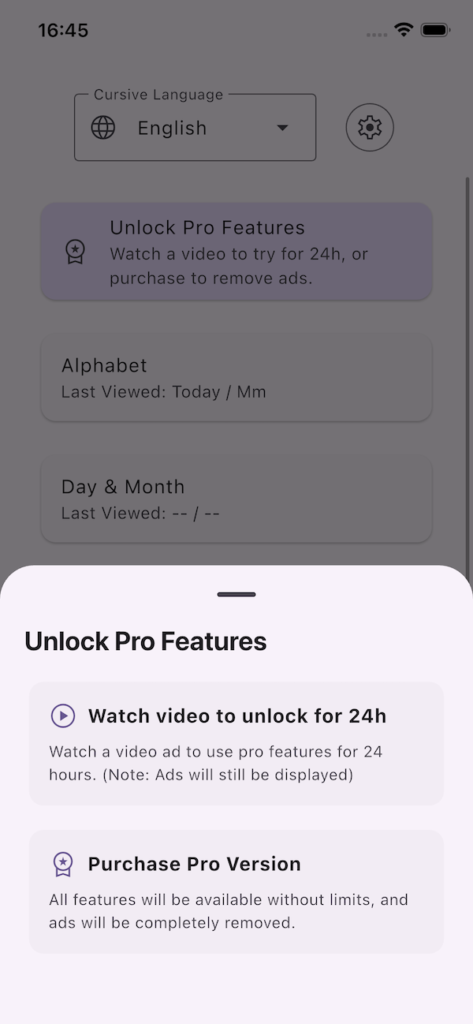
- Added a feature to use Pro features (excluding ad removal) for 24 hours for free by watching a video ad.
- Added support for Korean, Simplified Chinese, and Traditional Chinese as in-app languages.
- Minor bug fixes and improvements.
v7.0
- You can now organize and save words into groups (Pro version).
- Added backup and restore functionality.

Details of Key Updates
Ad Display Improvements (v7.2)
This update includes changes to how ads are displayed in the free version.
First, we’ve optimized banner ad display and improved layout stability.
Additionally, a full-screen ad may appear when returning to the home screen. Full-screen ads will never interrupt you during practice.
If you’d like to practice without ads, please consider upgrading to the Pro version. All ads will be removed, and you’ll have access to all features, including pen color customization and custom word management.
Video Ads (v7.1)
By watching a video ad, you can unlock and use Pro features (managing words and groups, changing pen colors, and switching examples) for 24 hours.
* Note: This does not remove ads.
If you watch another video ad while your free trial is still active, the 24-hour timer will be reset from that moment.
Word Grouping
We have improved the Custom Words feature, allowing you to organize and save your words into groups.
By opening the “Free Input / Preview” screen, entering your text, and selecting the “Add” button, you can now choose a specific group to save your words to.
Additionally, by tapping the “Edit” button, you can manage your words and groups (including adding, deleting, and reordering them).
Please note that these features are available in the Pro version (via in-app purchase).
Backup and Restore Functions
Added data backup and restore functions.
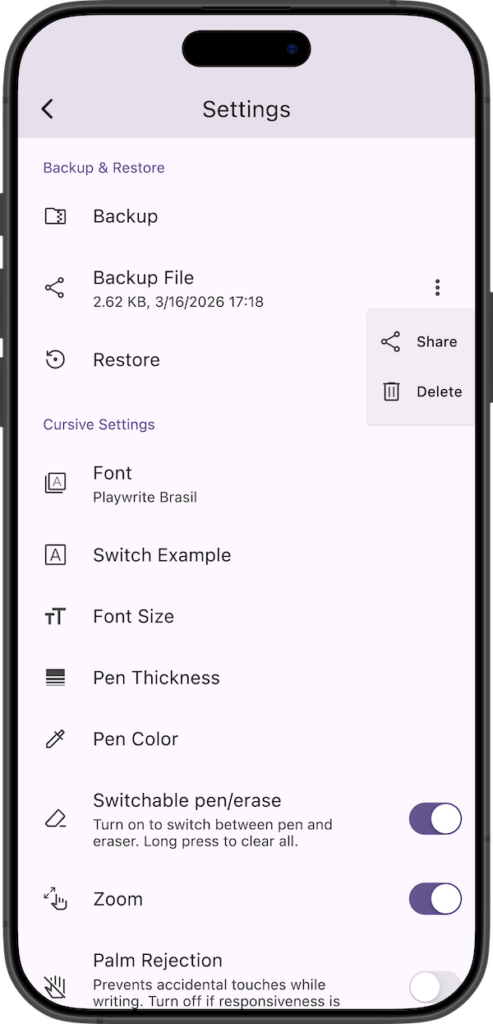
Tapping “Backup” on the settings screen starts the creation of a backup file (ZIP format).
Once created, a share screen will appear, allowing you to save this backup file by sharing it to other apps or services.
Once a backup is created, you can share it anytime from the “Backup File” section at the bottom of the settings screen. Also, since this backup file is saved in the app’s internal folder, you can delete it from the menu on the right if it is no longer needed. Please note that if you delete the app, this backup file will also be deleted.
Tapping “Restore” and selecting a backup file (.zip) will start the restoration.
Since all current data will be overwritten after restoration, please create a backup beforehand if necessary.
If you encounter any bugs or have suggestions for improvements, please contact us using the inquiry form below.