
v6.2
Due to an issue where writing was not possible on some devices, palm rejection has been disabled by default in v6.2. You can turn it on in the settings.
v6.1
- Added support for Palm Rejection
- Fixed an issue where pinch-to-zoom was sluggish
- Fixed capitalization of German nouns
- Fixed an issue where dialogs and menus would close immediately on iPadOS 26
- Other performance improvements
v6.0
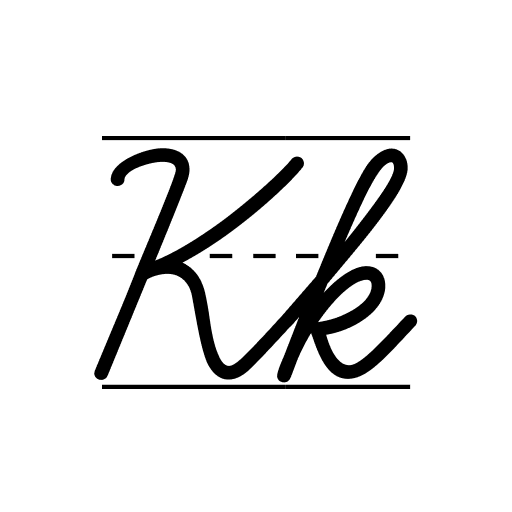
- Guidelines (ruled lines) are now available for non-default fonts.
- Cursive settings can now be accessed directly from the practice screen.
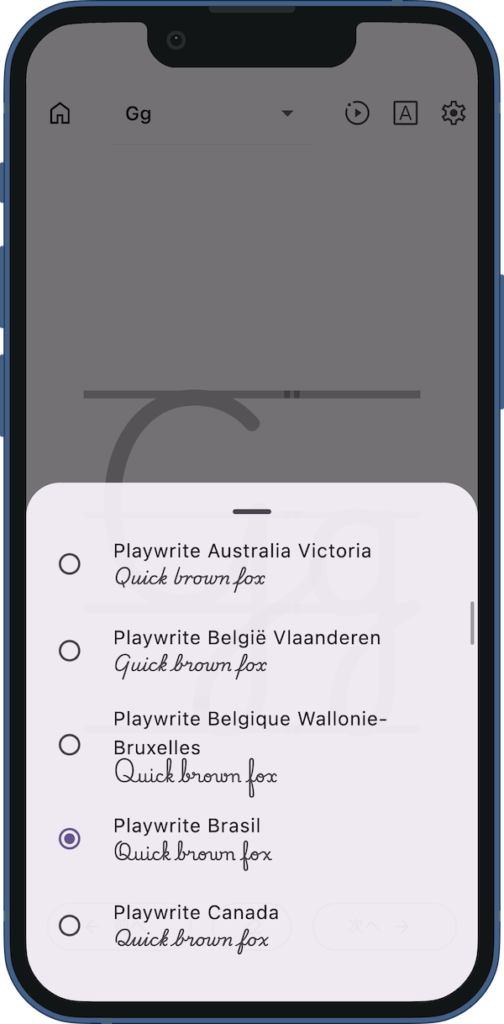
- Font names are now displayed with their official, full names.
- Full-screen ads are no longer displayed.
- Various UI enhancements.
Details of Key Updates
Support for Palm Rejection
We have introduced “Palm Rejection” support to prevent accidental touches when resting your hand on the screen while writing.
This feature works by detecting large touch areas and rapid distinctive inputs to identify and ignore palm touches via software.
Please note that unlike hardware-based rejection that relies on active stylus signals, this feature uses estimation and may not perfectly distinguish a stylus from your hand in every scenario.
However, it significantly minimizes accidental marks for a smoother writing experience.
* Due to an issue where writing was not possible on some devices, palm rejection has been disabled by default in v6.2. You can turn it on in the settings.
Improved Pinch-to-Zoom Performance
We have addressed the issue where pinch-to-zoom operations were sluggish in previous versions. This update brings significant improvements.
To enhance performance, text data is now rendered as an “image,” ensuring a much smoother experience.
Due to this mechanism, text edges may appear pixelated when zoomed in. Please understand that this specification prioritizes fluid responsiveness.
Support for Guidelines (ruled lines)
Support for Guidelines (ruled lines) In version 5.0, we introduced font selection, but guidelines were not available depending on the chosen font.
With this update, guidelines can now be displayed for all fonts, including non-default ones.
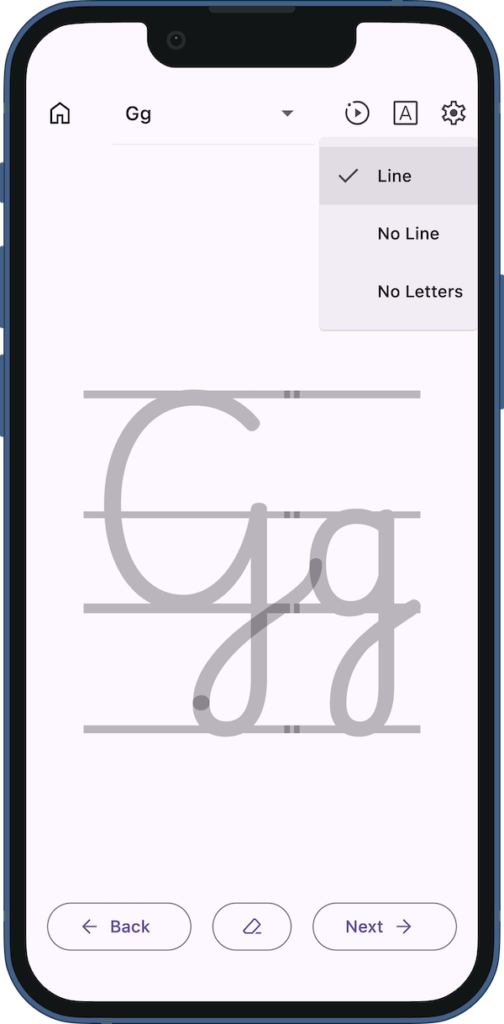
Cursive Settings on Practice Screen
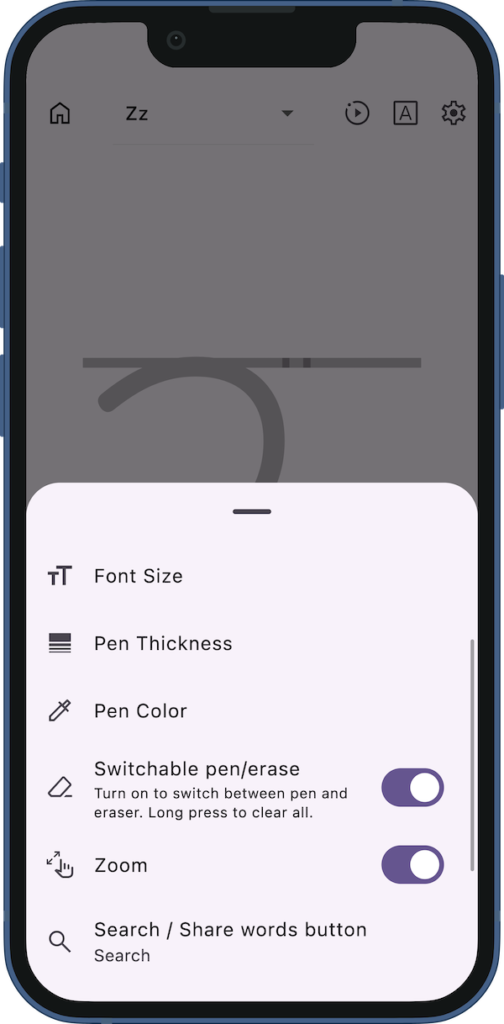
You can now configure cursive settings directly from the practice screen.
Tapping the settings button in the top right corner opens the configuration menu.
You can adjust settings such as font type and size while previewing the actual display in real-time.
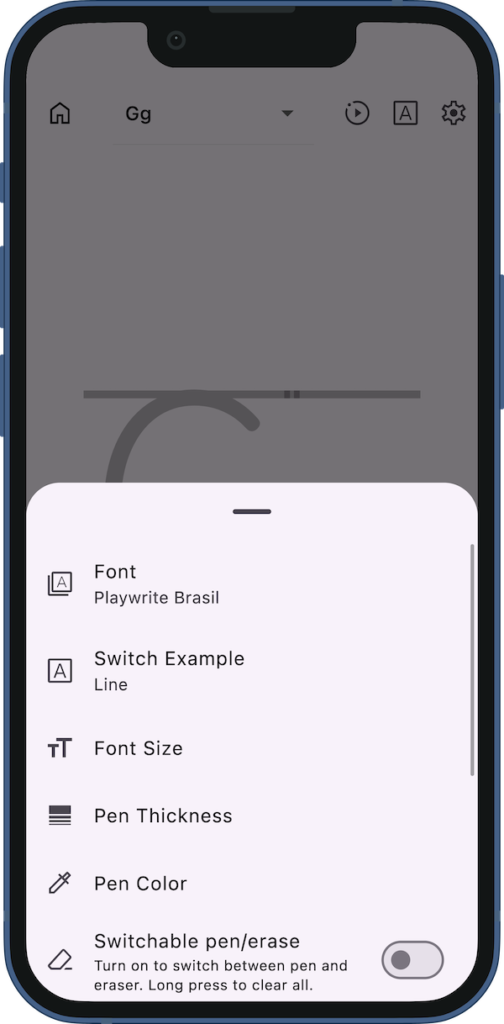
Full Font Names Displayed
In the previous version, font names were abbreviated, which could be confusing.
We have updated them to display their full, formal names.
The Playwrite fonts refer to handwriting styles taught in schools worldwide, and this update makes it easier to identify the specific country or region for each style.
UI Improvements
The bottom navigation buttons now change color to indicate when the first or last letter (or word) is displayed.
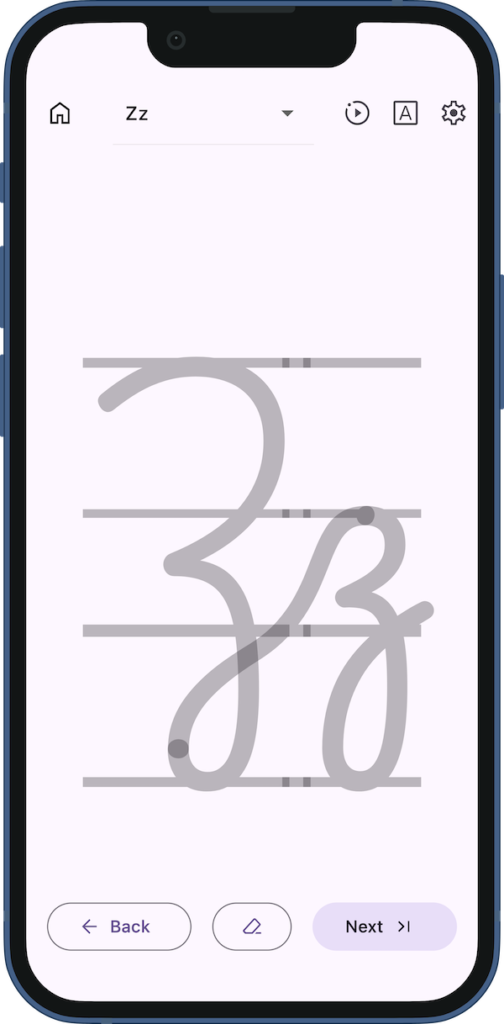
The pen/eraser toggle is now easier to understand, with the button icon changing to reflect the active tool (pen or eraser).
Additionally, when the toggle feature is enabled, you can now long-press the button to clear the entire screen.
If you encounter any bugs or have suggestions for improvements, please contact us using the inquiry form below.