

v8.1
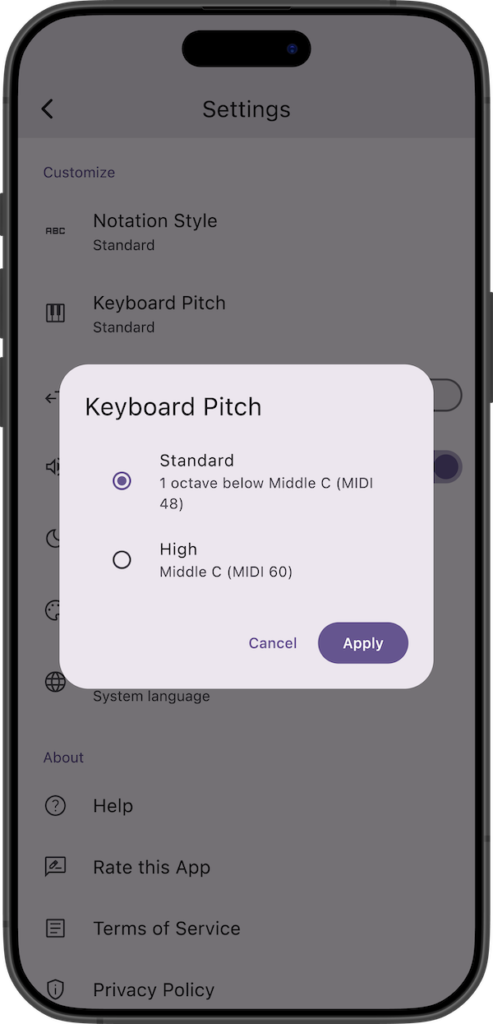
- Changed the default playback pitch for the keyboard display to one octave below Middle C. You can restore the previous pitch (Middle C) in Settings under “Keyboard Pitch”.
v8.0
- Expanded chord types from 17 to 42, categorized into Basic, Intermediate, and Advanced difficulties.
- Added display and quiz support for guitar/ukulele (fretboard and chord diagrams) and sheet music (treble and bass clefs), including lefty fretboard support.
- Added playback support using guitar and ukulele sound sources in addition to piano.
- Added support for selecting note notation styles (Standard, German, Semi-German, Solfège / Latin).
- Enhanced chord search with fuzzy matching and root note filtering.
- Added a quiz pause feature and initial setup guide.
- Added backup and restore functionality.
- Added in-app language switching and support for 13 new languages.

Details of Key Updates
Keyboard Pitch
Changed the default playback pitch for the keyboard display to one octave below Middle C.
You can restore the previous pitch (Middle C) in Settings under “Keyboard Pitch”.
Chord Types
- Expanded the number of chord types from 17 to 42, categorized by difficulty: Basic, Intermediate, and Advanced.
- You can now batch add or remove chords by difficulty level when selecting which chords to include in quizzes.
- Along with this change, we have updated the answer button UI in the Chord Name Quiz for a smoother experience.
Sheet Music, Fretboard & Chord Diagrams
- In addition to the piano keyboard, the app now supports displays on sheet music (treble and bass clefs), fretboards (guitar and ukulele), and chord diagrams (guitar and ukulele).
- You can freely select your preferred display style for both questions and answer formats in quizzes.
Note Notation Styles
Added support for German, Semi-German, and Solfège / Latin notation styles in addition to the standard English notation.
Chord List Improvements
- Enhanced chord search with fuzzy matching to handle spelling variations, as well as root note filtering.
- You can now easily toggle between enharmonic equivalent notations (♯ / ♭).
Backup and Restore Functions
Added data backup and restore functions.
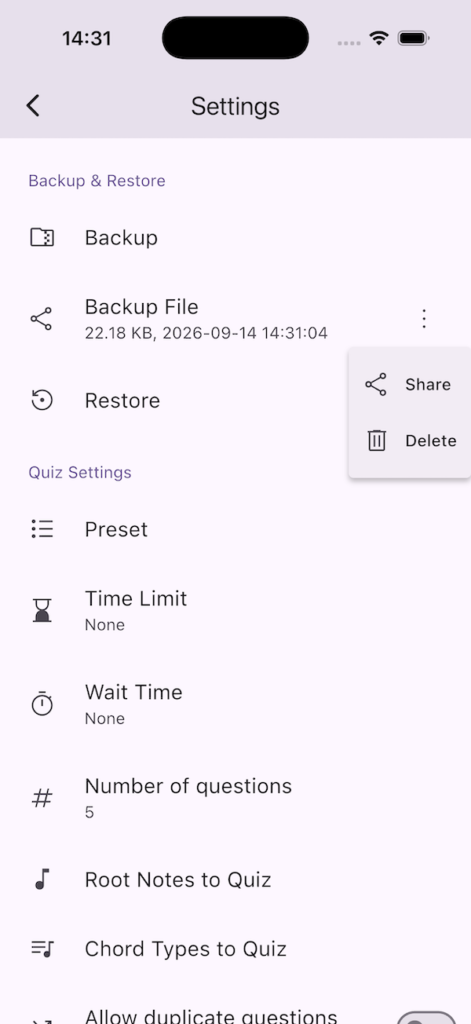
Tapping “Backup” on the settings screen starts the creation of a backup file (ZIP format).
Once created, a share screen will appear, allowing you to save this backup file by sharing it to other apps or services.
Once a backup is created, you can share it anytime from the “Backup File” section at the bottom of the settings screen. Also, since this backup file is saved in the app’s internal folder, you can delete it from the menu on the right if it is no longer needed. Please note that if you delete the app, this backup file will also be deleted.
Tapping “Restore” and selecting a backup file (.zip) will start the restoration.
Since all current data will be overwritten after restoration, please create a backup beforehand if necessary.
If you encounter any bugs or have suggestions for improvements, please contact us using the inquiry form below.