
v14.7
- Added support for palm rejection (In v14.7.2, palm rejection is now off by default due to an issue preventing writing on some devices. You can enable it from Gesture settings.)
- Improved pinch-to-zoom while writing
- Improved performance during backup and restore
- Improved performance of the export function
- Fixed an issue where dialogs and menus would close immediately on iPadOS 26
v14.6
- Full-screen ads are no longer displayed
- UI improvements
- Performance improvements
v14.5
- Added the option to start scores on new spreads in setlists
v14.4
- Support for password-protected PDFs

Details of Key Updates
Support for Palm Rejection
We have introduced “Palm Rejection” support to prevent accidental touches when resting your hand on the screen while writing.
This feature works by detecting large touch areas and rapid distinctive inputs to identify and ignore palm touches via software.
Please note that unlike hardware-based rejection that relies on active stylus signals, this feature uses estimation and may not perfectly distinguish a stylus from your hand in every scenario.
However, it significantly minimizes accidental marks for a smoother writing experience.
* In v14.7.2, palm rejection is now off by default due to an issue preventing writing on some devices. You can enable it from Gesture settings.
Start score on new spread
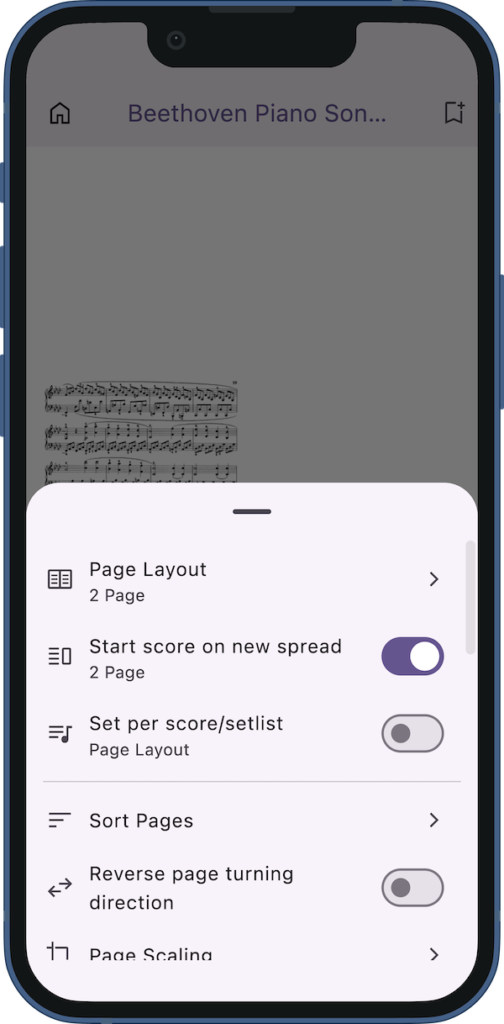
Added a feature to start scores on a new spread when using the 2-page view in a setlist.
When viewing a setlist with “Page Layout” set to “2 Page”, a “Start score on new spread” option appears in the page settings.
Turning this setting on ensures that the first page of each score begins on a new spread.
Support for password-protected PDFs
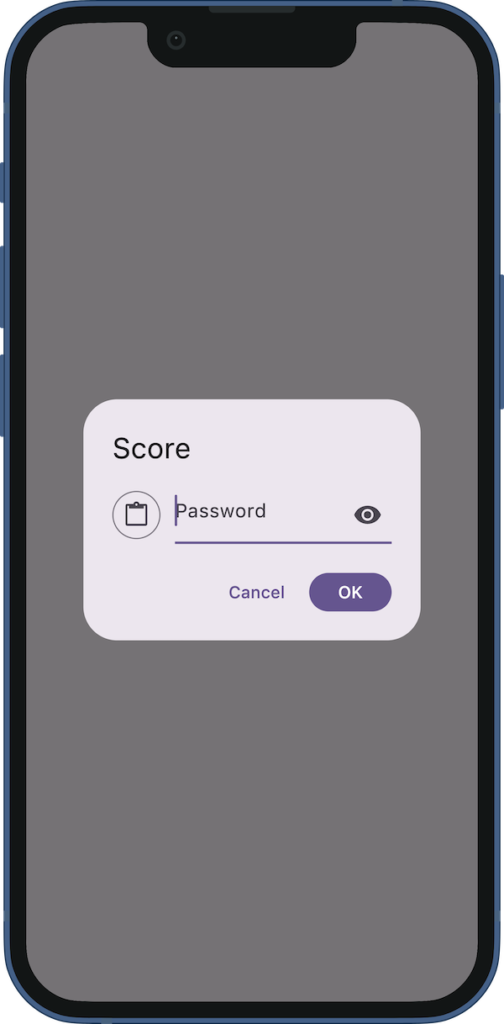
Password-protected PDFs are now supported.
When you open a password-protected PDF, a password input field will be displayed.
Once you enter the correct password, it will be saved, so you won’t need to enter the password again the next time you open the PDF.
If you copy the password in advance, you can simply press the paste button on the left to input the password.
You can press the eye icon on the right to show the password.
In the score information, if a password is saved, a password field will be displayed.
You can press the eye icon to show the password.
By pressing the copy icon to the right of it, you can copy the password to the clipboard.

If you encounter any bugs or have suggestions for improvements, please contact us using the inquiry form below.