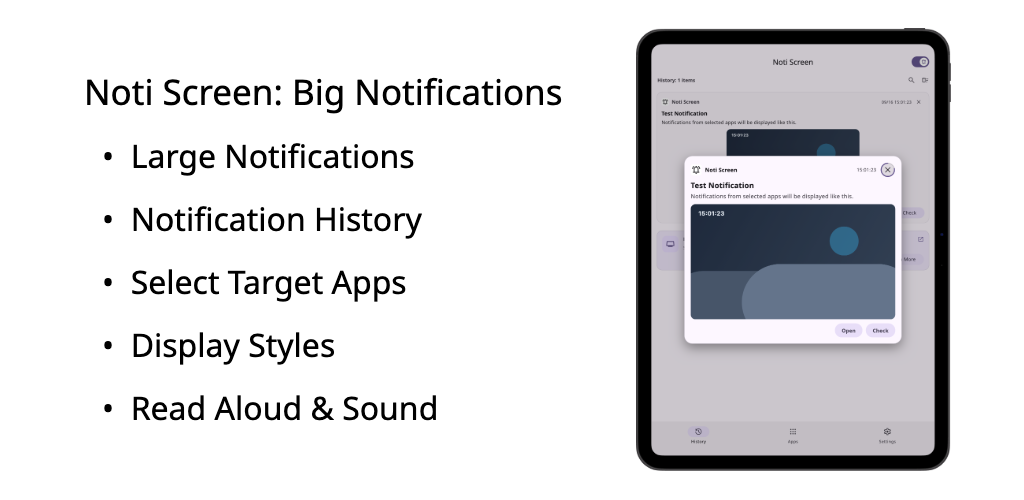
A simple notification display and notification history app that shows notifications and notification images from selected apps in a large view on your screen. Easily check notifications from security cameras, baby/pet monitors, and messaging apps at a glance, even from across the room. You can also display notifications over a clock app such as “Room Screen” to use your device like a smart display.
TOC
Features
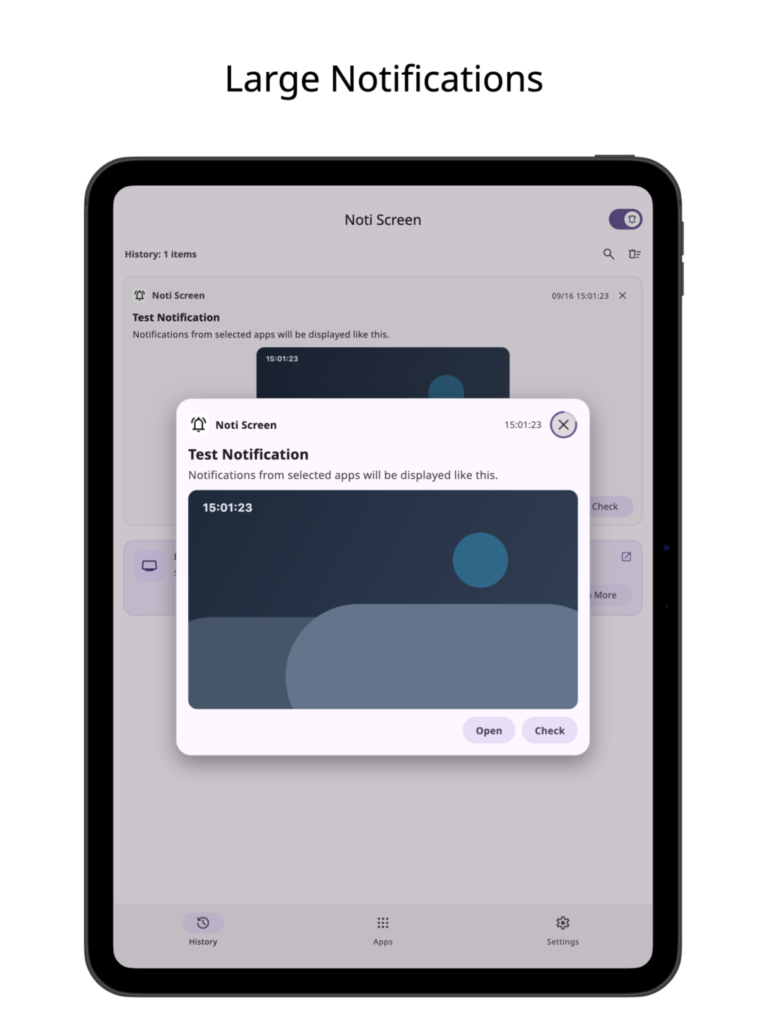
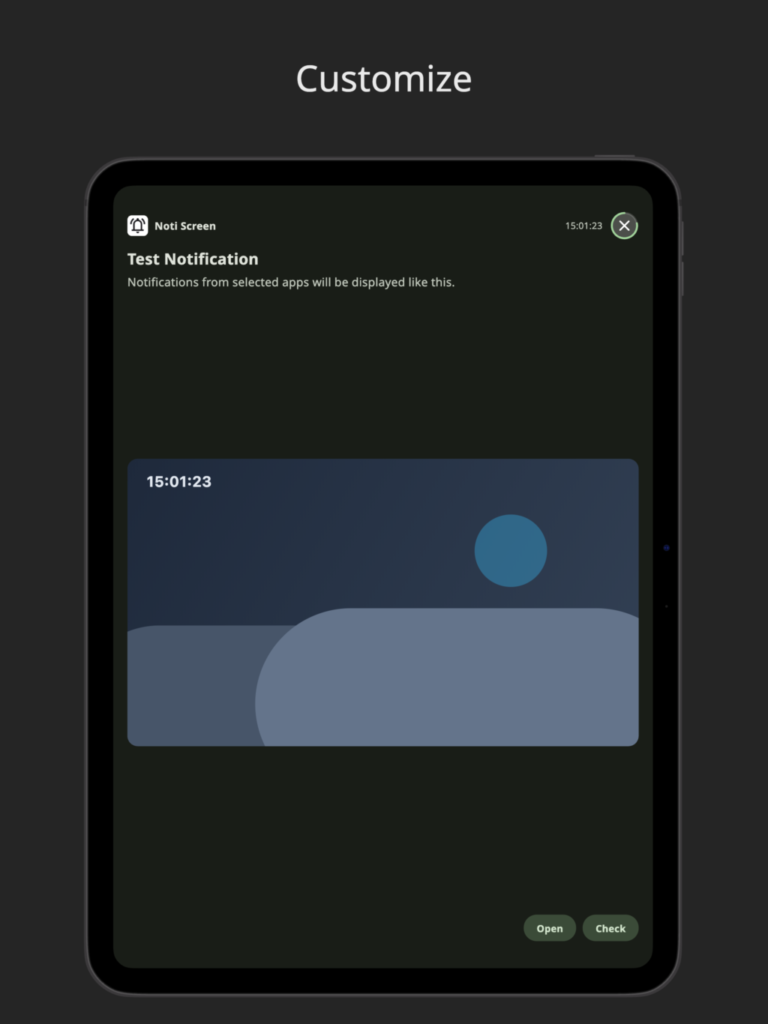
Large Notification Display
Overlays incoming notifications on top of your current screen while using other apps or on the standby screen.
Displays notification images (such as camera snapshots, photos, and stickers) as well as multi-frame image sequences and animated GIFs in a large view.
Automatically updates the display even when an image is loaded slightly after the notification first arrives.
Includes an option to display only notifications that contain an image on the screen.
Supports tapping notification action buttons or tapping the notification itself to open the original app.
Lets you adjust the display duration in seconds, or keep notifications on screen until closed manually.
Toggle notification screen display on or off anytime using the switch in the top bar.
Selectable Display Styles & Layouts
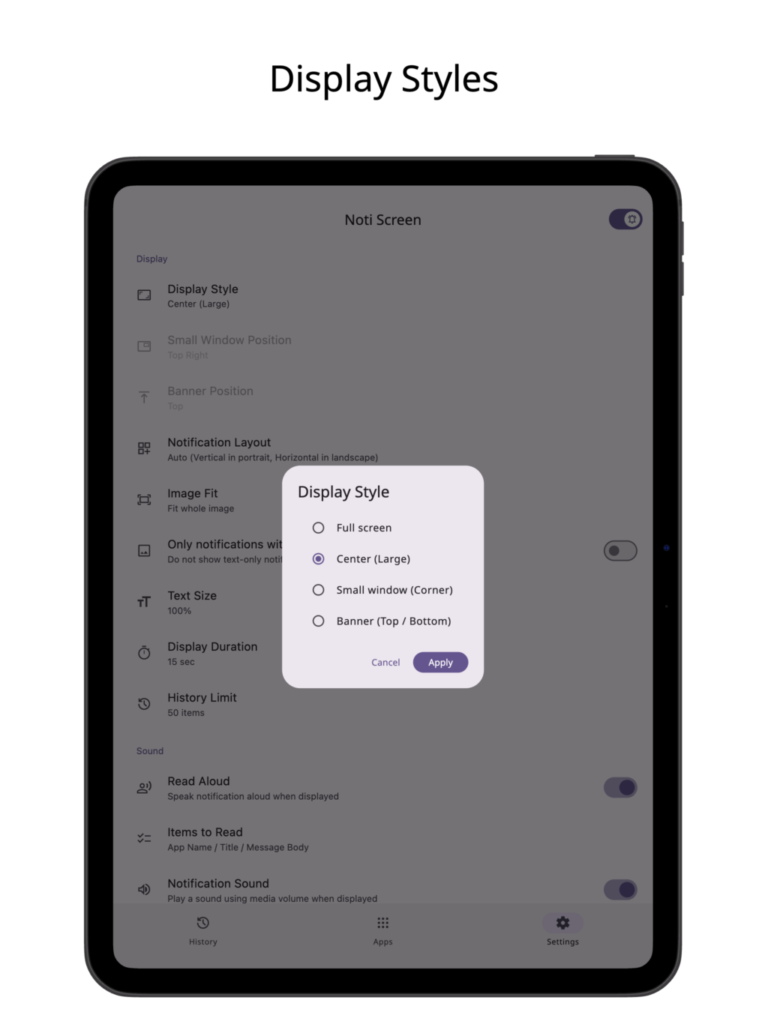
Choose from four display styles: “Center (Large)”, “Small window (Corner)”, “Full screen”, or “Banner (Top / Bottom)”.
Change the small window position (Top Right, Top Left, Bottom Right, Bottom Left) and banner position (Top, Bottom).
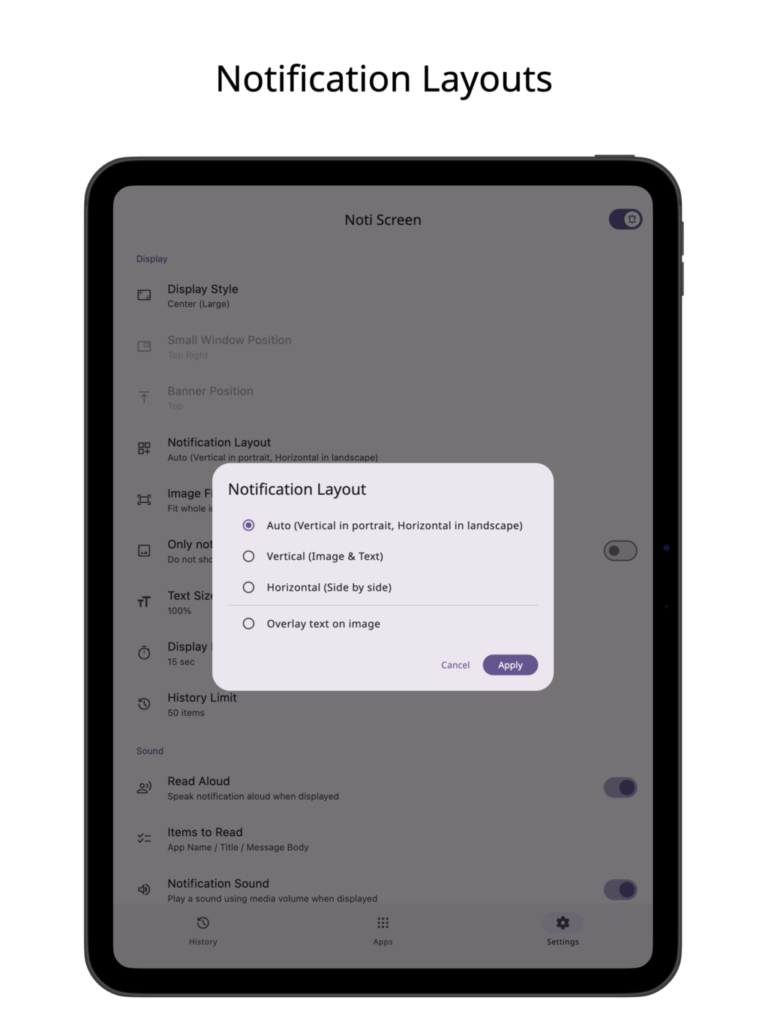
Choose the notification layout from “Auto (Vertical in portrait, Horizontal in landscape)”, “Vertical (Image & Text)”, “Horizontal (Side by side)”, or “Overlay text on image”.
Adjust the image fit mode (Fit whole image, Fill area) and text size (50% to 200%).
Use the test notification feature to immediately preview how notifications will look with your current settings.
Per-App Selection
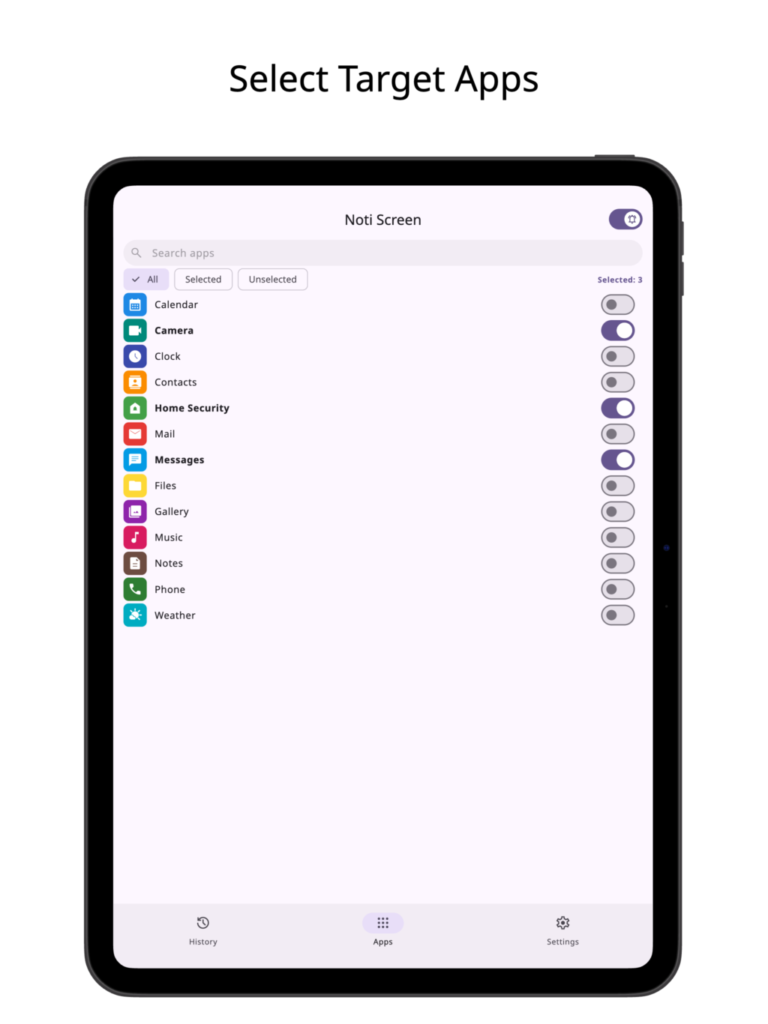
Freely select only the apps whose notifications you want to display and save from the apps installed on your device.
Supports searching by app name and filtering by selected or unselected apps.
Notification History
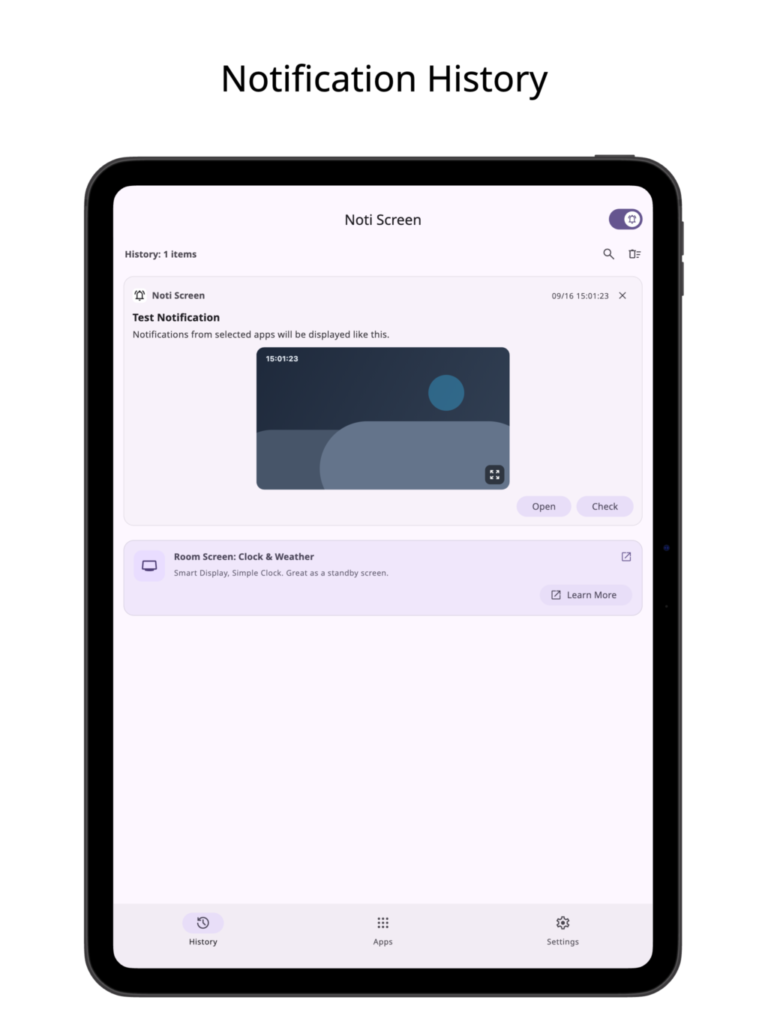
Automatically saves notifications from selected apps as history so you can review them later in a list.
Supports keyword search within history, as well as deleting individual items or clearing all history at once.
Tap any image in history to view it enlarged with pinch-to-zoom support.
Open the original app or trigger notification action buttons directly from the history list.
Change the maximum number of history items saved.
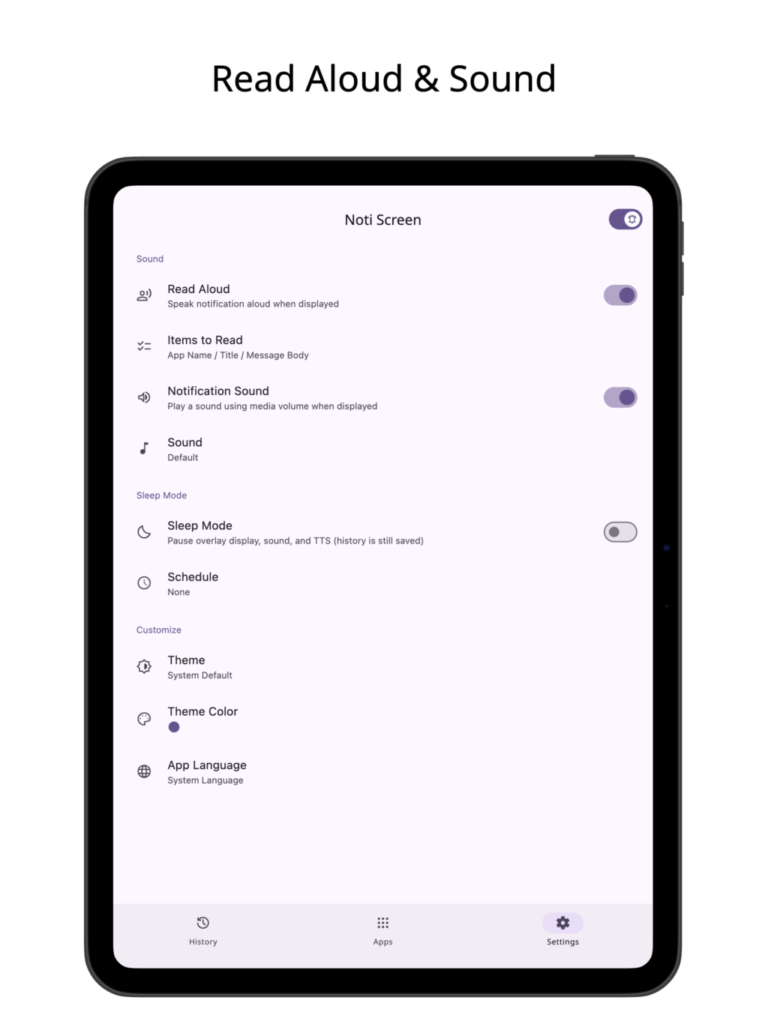
Voice Readout & Notification Sound
Reads notification content aloud when a notification arrives.
Choose which items to read aloud (App Name, Title, Message Body).
Play a sound when a notification is displayed, and select your preferred tone from the notification sounds on your device.
Because the sound is played using the media volume, you can keep your device in silent mode and still play notification sounds only for your selected apps.
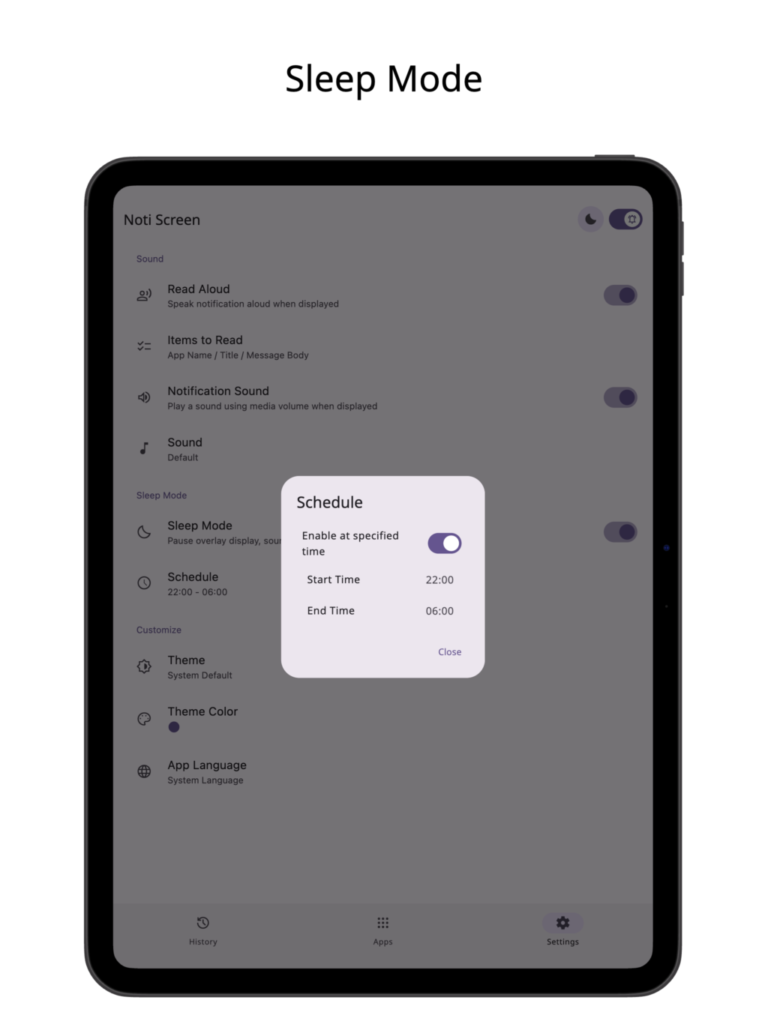
Sleep Mode
A mode that temporarily pauses notification screen display, voice readout, and notification sounds.
Set a schedule to automatically turn on Sleep Mode during specified hours, such as at night.
While in Sleep Mode, an icon appears in the top bar; tapping it takes you directly to the Sleep Mode section in Settings.
Notification history continues to be saved even while in Sleep Mode.
Customization & Privacy
Supports Dark Mode.
Change the theme color, including support for automatic system colors based on your device wallpaper (Dynamic Color).
Simple, clean design compliant with Material Design.
All notification content and images are processed and stored exclusively on your device and are never sent externally.
Contact
If you encounter any bugs or have suggestions for improvements, please contact us using the inquiry form below.
enoiu
About | enoiuAbout enoiu enoiu is the name of this site. Also, enoiu is an individual who run this site and create apps. Privacy Poli