
- You can now set timers and time limits.
- You can now set options such as choices and question types for each question.
- Sub-questions and descriptive questions are now supported.
- You can now set scores.
- You can now change question numbers.
- Added preset function for choices.
- Introduced search bar.
- Added function to set label colors.
- Full-screen ads will no longer be displayed.
- Added “Keep Screen On” option.

Details of Key Updates
Sheet List Screen
Introduced search bar.
Tapping the search bar allows you to search by sheet title.
Search history is also displayed.
With this update, the search feature is now available even without the Pro version.
Settings can be accessed from the menu on the left of the search bar.
Pressing the label button below the search bar allows you to filter sheets by label.
Filtering by multiple labels is also supported.
Pressing the filter icon to the left allows you to filter by sheet status (Answering, Scoring, Scored).
In the sheet list, icons for “Answering” and “Scoring” are now displayed on the left side of each sheet.
If scoring is complete, a pie chart of the score rate is displayed.
Label Color
Added function to set label colors.
When adding or editing a label, turning on the switch in the dialog allows you to select a color.
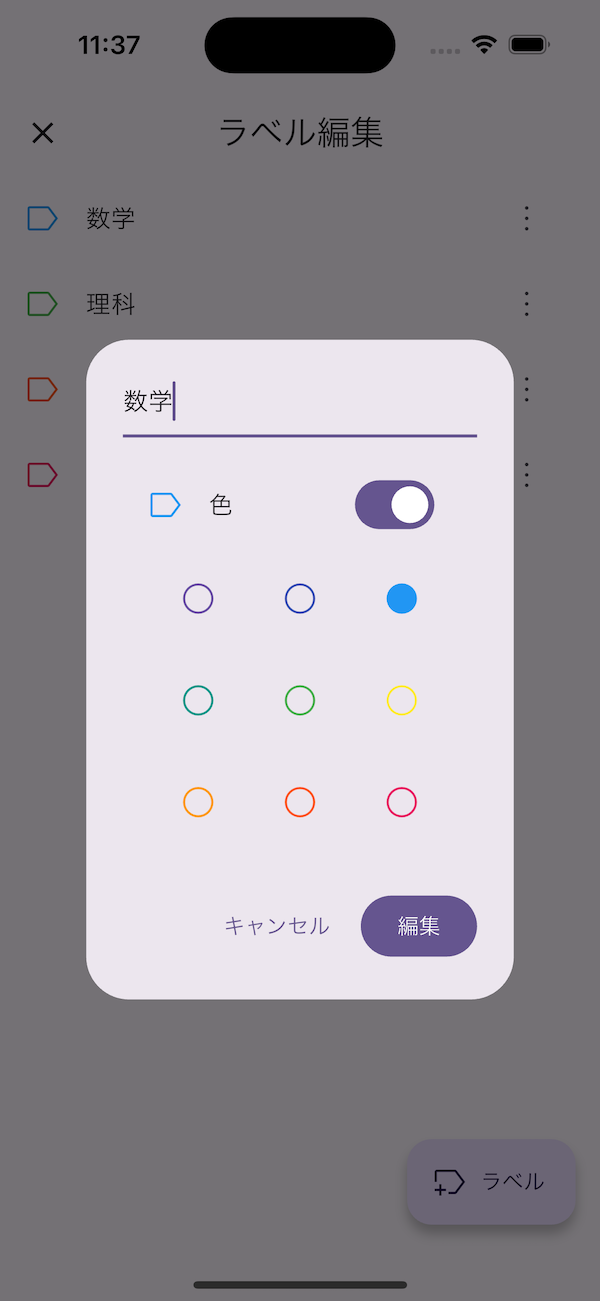
Mark Presets
You can add presets from “Manage Presets” in Settings.
To add choices in the edit choice screen, you can add them by entering text in the text box below or by using the “Quick Input” on the right.
By enabling “Include Mark Size”, the mark size will also be applied when loading this preset.
With this update, you can now change the mark size even without the Pro version.
Adding Sheets
When adding a new sheet or duplicating one, you can tap the timer on the bottom left to set a timer and time limit.
Enabling the timer allows you to measure the time taken for each question.
Pressing “Next” displays the sheet details settings screen.
Here, you can change choices and question types (Mark, Sub-question, Descriptive) for each question.
You can also add or delete questions.
When adding a question, the question number is set based on the previous question number (Example in video: If the previous sub-question was “A”, the sequence will be A, B, C, D, E).
As shown in the video, if you set sub-questions for one main question and then add multiple questions, the set sub-questions will be reflected in all added main questions.
Tapping a question number allows you to configure settings for that question (tap the sub-question number to configure settings for that sub-question).
If you edit the first question number and then select “Renumber Questions” from the menu below, the questions will be renumbered based on the first item.
In each question’s settings, you can set the correct answer by tapping the mark. By enabling “Show Answer” at the top, you can set correct answers in bulk as shown in the video.
By enabling “Show Score” at the top, you can directly edit the points for each question.
Selecting “Distribute Points” from the menu below distributes the entered total score evenly to each question.
Sheet Screen
If the timer is enabled, tap the screen and press the start button to start the timer.
You can play/pause the timer with the button on the bottom left.
Pressing the “Start scoring” button below allows you to enter the correct answers.
After that, pressing the “End scoring” button displays the score rate.
Pressing the timer-like button on the right allows you to check the time taken for each question.
Also, tapping the question number of a main question displays the total score and total time for the sub-questions within that main question.
Descriptive Questions
Descriptive questions are now supported.
In the details settings screen after adding or duplicating a sheet, set the question type to “Text” (Descriptive).
For descriptive questions, you can set a model answer and a character limit.
Scoring is done by moving the slider. Partial points are also supported.
Keep Screen On
Added “Keep Screen On” option.
Prevents the device from automatically sleeping while the MarkSheet screen is displayed.
You can turn this feature off in Settings.
If you encounter any bugs or have suggestions for improvements, please contact us using the inquiry form below.